
Appearance
Velis Auto Brightness
Velis Auto Brightness adjusts your screen's brightness automatically, based on how much light is actually reaching it - rather than using the phone's normal fixed brightness curve. It reads one or more sensors (the light sensor, and optionally the front or back camera), maps the reading onto a brightness curve you control, and applies the result. Where the system's own auto-brightness is a fixed curve you can't see or adjust, every part of that mapping here is yours to inspect and reshape.
That level of control matters beyond convenience: for anyone with light sensitivity - migraines, photophobia, low vision, or similar - the system's own automatic brightness can land somewhere uncomfortable with no way to correct it except turning it off entirely. Here, every part of that mapping is visible and adjustable, so brightness can be kept exactly where it needs to be for any given light level, automatically.
In the app, the search field at the top of the manual and the Changelog highlights every occurrence of the text you type and scrolls to the current one; the arrows next to it move to the previous or the next one.
Getting started
The first time you open the app, a short wizard walks you through the basics: how bright you like your screen, whether to boost brightness when charging, how sensitive the app should be to light changes, and whether to turn automatic brightness on right away. You can re-run it any time from Settings → Run settings wizard if you want to start over. When a page's choice needs a permission, the wizard asks for it as you leave that page: modifying system settings for automatic brightness, displaying over other apps or modifying system settings for the brightness update method, and the camera when one is chosen as a light source.
Everything the wizard sets can be refined afterwards from the main screen or the settings screen - nothing it asks is a one-time, unchangeable choice.
A setting that has no effect with the current choice of other settings is greyed out on the settings screen, and its description says why. When a change disables or enables other settings, a dialog lists them; a disabled setting that was on is marked, since the app now works without it.
New phone
When Android restores the app from a backup or moves it to a new phone, your choices come along: the brightness curve and saved profiles, sensitivity, extra brightness and override settings, the Superdim threshold, excluded apps, notification, widget, theme and language. Data that only holds for the phone it was made on stays behind: detected sensors, Calibration, the tested brightness update methods, the chosen Brightness update method, Update system brightness and its range, lock screen behavior, Superdim limits and permission requests. On the new phone the setup wizard runs again and automatic brightness is off until you switch it on there, or until the screen turns on with Start when screen turns on set. Run Calibration and its brightness update method tests again; with a Superdim threshold set, the main screen reminds you to run the Superdim tests.
Main screen
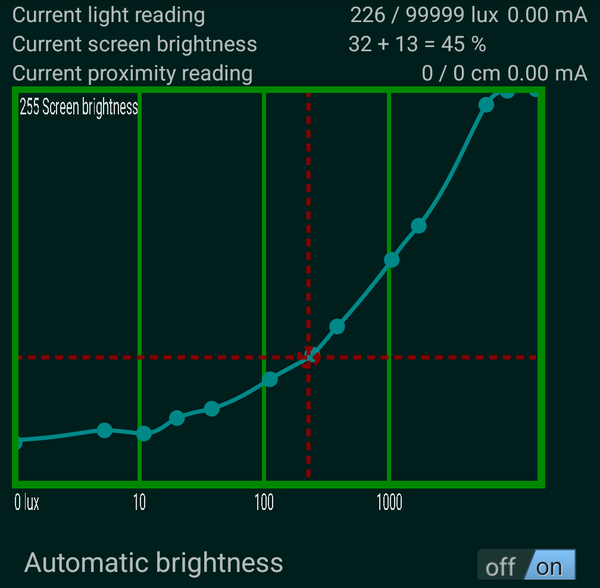
The main screen shows, at a glance:
- Current light / proximity readings - what the active sensor is seeing right now, and how much power it's estimated to be using.
- The brightness graph - the curve that maps a light reading (horizontal axis, log-scaled) to a screen brightness (vertical axis). This is the heart of the app: everything else exists to either feed a reading into this curve or let you shape it. While Additional brightness when charging, Permanent additional brightness or Additional brightness when interacting raises brightness, a dashed curve above it shows the curve with that additional brightness. A dashed crosshair marks the current light reading and the brightness it produces, on the dashed curve when there is one.
- Automatic brightness - the master switch. Turn it on to let the app actually control your screen; the system's own automatic brightness is switched off for as long as it is on. Disable system handler (Settings → Service activation) only chooses whether the system's automatic brightness stays off while this switch is off too, so it can't be changed while the switch is on, and shows on then.
- Profiles - buttons below the graph let you save the current curve under a name and switch between saved profiles later (long-press a profile to save, rename or delete it, or to choose what it saves). A name needs at least one character; saving or renaming under the name of another profile replaces that profile. The profile you last applied or saved is the active one, and its button has a ring just inside its border. Applying a profile from the widget, the quick settings tile or Tasker makes it the active one too; deleting it leaves no profile active.
A profile can save the brightness curve, settings, or both. A new profile saves the curve only. Long-press a profile and choose What this profile saves to open a list headed with the profile's name: a Brightness curve switch, then a switch for each setting a profile can save, grouped as on the settings screen. Each switch is on when the profile's pending contents include its item; turning it on takes the current value, turning it off removes it. Below each switch, Saved shows the value the saved profile holds (or Not saved), followed by Pending with the new value, or Pending: removed, where the pending contents differ. The switches change the profile's pending contents: the profile's button shows the pencil (see below) until you choose Save changes or Revert changes from its long-press menu, and applying the profile meanwhile uses its saved contents. The settings a profile can save are Brightness sensor, Proximity sensor, Front camera and Back camera, Light sensor update speed, Camera read interval, the two screen touch settings, Screen-on sensor value override, Excluded apps sensor value override, Glare takeover threshold, Use device's boost brightness, Superdim threshold, the additional brightness types and percentages, and the Sensitivity settings. Settings that belong to this phone, such as calibration or the brightness update method, are never saved in a profile.
Applying a profile - from its button, the widget, the quick settings tile or Tasker - sets the settings it saves and, if it saves the curve, the curve; a profile without the curve leaves the current curve as it is. The two sensor value overrides are limited to this phone's system brightness range.
A profile has changes while its pending contents from What this profile saves are not saved, and, for the active profile, while the current curve or settings differ from what it saves - after a graph edit, a confirmed adjustment from the notification, a preset choice or a change to a saved setting. The button of every profile with changes shows a small pencil in its top right corner (top left in right-to-left languages). Long-pressing that button then also offers Save changes and Revert changes. Save changes makes the pending contents what the profile saves; for the active profile it then stores the current curve and setting values in the profile (only what the profile saves), while another profile keeps the values shown on its What this profile saves screen. Revert changes discards the pending contents and, for the active profile, applies the profile again. Save profile, which also renames a profile, saves its pending contents too.
While the current curve or settings differ from the active profile, tapping a profile button asks first: tapping the active profile asks whether to revert those changes, and tapping another profile offers Save and switch, Discard and switch or Cancel.
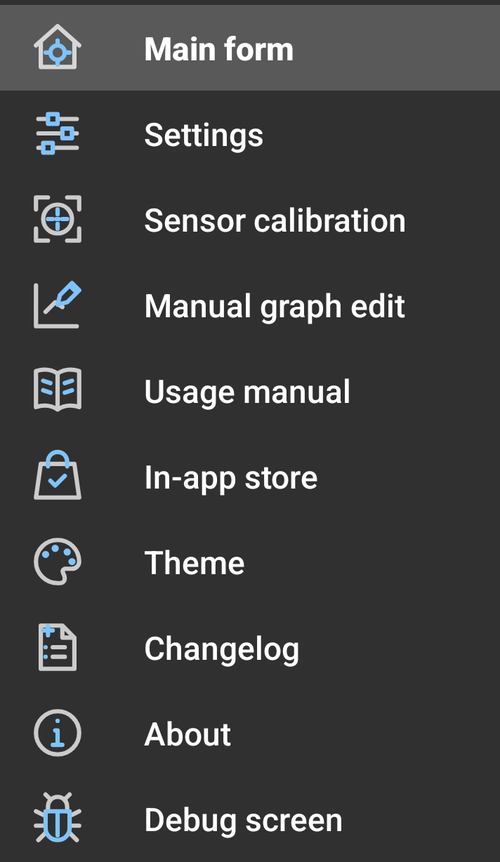
The ☰ button at the top left opens the drawer menu, which leads to the rest of the app: Settings, Calibration, Manual graph edit, this manual, the In-app store, Theme, Changelog and About, and below a divider the Debug screen and App translation.
Editing the brightness curve
Touch the graph directly to reshape it:
- Press and drag a point to move it.
- Press and hold, then drag to create a new point at the hold position and drag it into place.
- Press and hold, then let go without dragging to remove the nearest point.
While you drag, the points around the one you're dragging follow it, less the farther away they are - Graph editing smoothing (Settings → Graph settings, 30 % by default) sets how far, as a share of the graph's width on each side; at 0 only the dragged point moves. With Smoothing helper points on (the default), temporary points are added across the whole graph first, so the curve bends smoothly wherever you take the point, even where it had few points or none; when you let go, the ones the curve doesn't need are removed again, and your own points are never touched.
Every edit applies immediately - there is no separate confirm step. Right after an edit, an Undo button appears in place of the buttons below the graph; it reverts the curve to how it was just before your last change, and disappears on its own after the Graph undo timeout setting (Settings → Graph settings) if you don't use it. The same slot also holds an Optimise curve points button, which automatically drops any point a smooth curve through the other points would already reconstruct closely enough - useful for simplifying a curve that grew too many points over time.
If you need more precision than a finger allows, Manual graph edit (drawer menu) lets you edit the same points as plain text, one lux brightness pair per line. OK saves the text as the curve; Revert, available while the text differs from the curve, shows the current curve again.
Sensors
The app can read ambient light from the phone's light sensor, its front camera, or its back camera - turn each on or off in Settings → Sensors. If more than one is enabled, Ambient light source lets you pick which one actually drives brightness; the others can still feed into other features (see Glare detection and Calibration below) without being the primary source.
Camera-based reading has two modes, controlled by Camera read interval: a normal interval takes a single photo every N seconds (cheaper, but the back camera's shutter audibly clicks each time - this is enforced by the phone's camera hardware/OS and can't be suppressed through the public camera API); setting the interval to 0 switches to continuous capture, which keeps the camera streaming with no shutter click at all, at the cost of noticeably more battery and CPU use.
Turning a camera on, choosing it as the Ambient light source or as the glare camera asks for the camera permission at once if the app doesn't have it yet. While the app is in the background, Android lets it use the camera only while its accessibility service is on; without it every camera reading fails, and the main screen's reminder to turn the accessibility service on says so. Android also shows its own camera-in-use indicator or notifications whenever the app takes a reading; they can't be turned off from the app.
Proximity and steady screen
A hand or a face near the phone shades the light sensor before anything else notices, so for a moment the sensor reports a much darker room than there is. Two settings in Settings → Sensors keep brightness from following such readings:
- Proximity sensor - while the proximity sensor is covered (a call, a pocket, a hand over the top of the phone), and for 3 seconds after it's uncovered, light readings are ignored. Not while the phone lies face down and the sensor reads 25 lux or less: brightness then follows the dark reading, since nobody sees the screen.
- Screen touch - steady screen - for the given number of seconds after each touch, light readings are ignored the same way. Useful when your hand shades the sensor while you use the phone. Needs an overlay-based Brightness update method or Superdim to detect the touches.
In both cases brightness goes to the light level from roughly before the hand started to approach, not to the last reading: the app keeps a slowly following average of recent readings (over about 9 seconds, or the steady-screen time if that's longer) and holds on that. So brightness can still change once at that moment - back up, if the hand had already made the screen dim - and then stays put. When the hold ends, brightness moves smoothly to whatever the sensor reads by then.
Steady screen update brightness sets how many quick taps (within 0.6 seconds) make brightness jump straight to the current sensor reading, even during a hold - handy when the light really did change while steady screen was holding it.
Erratic sensor readings fix
Some light sensors report a value that keeps swinging up and down around the real one - either faulty hardware, or a sensor under the screen that briefly samples a flickering lamp (typically a compact fluorescent bulb) and turns its flicker into a slow wave. Brightness then pulses along with it. With Erratic sensor readings fix (Settings → Sensors) on, the app watches the last 30 seconds of readings; once they have gone up and down at least twice and are still doing so within the last 5 seconds, it uses the average of the last few swings instead of each reading. A steady light, a gradual change or a single jump (switching a lamp on) pass through untouched, and the fix lets go a few seconds after the swinging stops.
Calibration
Calibration (drawer menu) opens on a hub with three separate things to calibrate or verify - pick whichever one you need:
- Cameras / light sensor - camera brightness readings and the light sensor's lux value aren't on the same numeric scale. Once calibrated, a camera's readings are on the light sensor's scale: one brightness curve then fits whichever of them is the Ambient light source, and glare detection (below) can compare them. Calibration needs the camera permission and asks for it when it starts. This walks you through a short guided process: it reads the light sensor and the front camera at the same time while you sweep your hand across six brightness levels, then derives a matching calibration for the back camera by repeating the same motion and matching its pattern against the now-calibrated front camera. It's a rough, on-device calibration, not a lab instrument, but it gets both cameras into the same ballpark as the light sensor.
- System brightness maximum value - some devices use a wider scale than 0-255 for their system brightness setting (some report up to 4095, for example); writing 255 on such a device would only reach a small fraction of true maximum brightness. This step asks you to set brightness to maximum from your device's own display settings, then reads back the real number that produced - the value System brightness maximum value (Settings → Service activation) should be set to. On some devices that reading isn't the display's true maximum: on a Pixel 8 Pro, writing the system brightness setting directly doesn't visibly change the screen, and the slider at maximum indoors reads back well below the theoretical ceiling, because the display has a separate High Brightness Mode that only engages in bright ambient light. Check that the screen looks at its brightest before saving the value. The app also notices on its own when the device evidently uses a wider scale - the system brightness setting goes above the current value, or Android reports a higher maximum - and raises the value to match. That only gives a lower bound, so until this step has measured the real one (or you set it by hand in Settings), the main screen shows a warning that leads here, nothing writes the system brightness setting: System brightness setting as an update method or lock screen option and Fixed brightness on the lock screen are left out of their lists, and Update system brightness is disabled. The rest of the app works normally meanwhile. If the setup wizard finds such a scale, it ends on a page that brings you here.
- Brightness update methods - lets you dim then brighten the screen through each available method in turn (see below) and confirm whether you actually saw it change, since not every method works on every device. A method you confirm didn't change anything is kept out of Brightness update method and Lock screen brightness below until you test it again and confirm it does - test it again any time you like, even right after saying no. If every method on your device ends up disconfirmed this way, both the main screen and Settings show a note explaining that and linking straight back here. The same step also has a Superdim test at the bottom - see Superdim below.
Glare detection
Ambient light sensors sit on one side of the phone. If bright light hits the other side (glare across the screen, direct sun from behind, etc.) the sensor under-reads and the screen ends up too dim to see clearly. Glare camera (Settings → Glare) lets you designate the front or back camera as a dedicated glare sensor: when it reads significantly brighter than the main sensor (past Glare takeover threshold), it takes over the brightness calculation instead of the main sensor's now-unreliable reading. This only makes sense once that camera has been through calibration, since the comparison is only meaningful on a shared scale.
Brightness update method
Brightness update method (Settings → Service activation) chooses how the computed brightness actually reaches the screen - no single method is known to work on every device, which is why more than one exists:
- Overlay window - the default. A transparent window carries the brightness on its own, without touching any device-wide setting.
- Accessibility overlay - the same idea, using a different kind of window available to this app because it's already an Accessibility Service.
- System brightness setting - writes the value directly to the device's own brightness setting instead. Needs the special permission this triggers on first use, and not every device's display hardware reacts to it.
- Display manager - writes through a newer, dedicated platform API instead of the older brightness setting; only offered on devices that actually support it. Has its own section below - it carries a risk and a caveat the other three don't.
When the calibration screen confirms System brightness setting, it is the preferred method: the system brightness slider keeps working on every phone (see Notifications), and the screen doesn't flash when it rotates. The overlay-based methods are needed for Screen touch - steady screen, Steady screen update brightness and Additional brightness when interacting: only a window of this app detects screen touches, so with System brightness setting or Display manager these settings work only while Superdim is on, and are disabled otherwise.
Update system brightness (Settings → Service activation) additionally keeps the device's own brightness setting in sync with what's applied in real time, with a minor battery cost. With an overlay-based method this matters whenever the screen rotates: until the overlay has redrawn itself for the new orientation, Android briefly ignores the brightness it carries and shows the device's own setting instead - a visible flash if that setting holds a different value. Other apps and widgets that read the setting also see a current value, and so does the brightness slider in the notification shade - without this switch it stays where it was last set. Has no effect if the method above is already System brightness setting, since there'd be nothing left to add. Independently of this switch, whenever an overlay-based method steps back (an excluded app comes to the foreground, the screen turns off, or Automatic brightness is turned off) the device's own brightness setting is written once with the current value, so the screen doesn't jump to whatever stale value it last held.
Whichever methods you're unsure about, the calibration screen's Brightness update methods step (above) lets you test each one directly and confirm it actually changes your screen.
Display manager
Display manager is a recent platform API. It can apply the wrong brightness, or none, without reporting an error, so the app can't detect such a failure, not even during its test. If the screen stops reacting to light changes while Display manager is selected, switch to another method.
Display manager writes brightness as one of two value types: Raw ([0.0, 1.0], the platform's own native scale) or Percentage (0-100). The calibration screen's Display manager row has its own dropdown to test each independently; each keeps its own confirmed/not-confirmed result, and if both are confirmed working, Raw is used (it needs no conversion on the platform's side; Percentage does).
On one device this app was tested on, that Percentage conversion turned out not to be linear: requesting 8% produced about 0.1% of full brightness, and 92% produced about 40% - still correctly monotonic and responsive to the light sensor, just not matching the 0-255 scale the app's own curve is built around. Nothing in the app can detect this (the write succeeds and tracks the sensor correctly), so if a confirmed Percentage result looks dimmer than your curve intends, this conversion is the likely reason - a separate curve calibrated specifically for it (see Profiles, above) is the fix, not a setting.
Additional brightness
Settings → Additional brightness raises the brightness the curve gives, by a percent of that brightness, a percent of full brightness, or both:
- Additional brightness when charging and Additional percent to add - while the phone is charging.
- Permanent additional brightness and Permanent additional percent - always.
- Additional brightness when interacting and Interaction additional percent - from a screen touch until Interaction duration seconds after the last one; 0 seconds turns it off. Touches in this app's own screens count too. Like steady screen, it needs an overlay-based Brightness update method or Superdim to detect the touches.
The additional brightness applies at once, without the smoothing that light readings go through, and adds up when more than one is on.
Lock screen
An overlay-based brightness update method (Overlay window, on API 26+) has no effect at all while the device's lock screen is showing - the OS doesn't let that floating window override brightness there. Lock screen brightness (Settings → Service activation) chooses what to do about that:
- Same as normal mode - whatever the method above already does.
- Hand off to system automatic brightness - turns the system's own automatic brightness, which is off while this app is on, back on for as long as the device stays locked, and back off again on unlock.
- Accessibility overlay / System brightness setting / Display manager - keeps writing brightness continuously while locked through that specific method, regardless of which one normal mode otherwise uses.
- Fixed brightness - applies the Screen-on sensor value override (Settings → Sensors) once, the moment the device locks, through System brightness setting and Display manager both at once (whichever this device honors), and leaves it untouched until you unlock.
None of these are guaranteed to work, so every option except Hand off to system automatic only appears here once the calibration screen's Brightness update methods step (above) has confirmed it - that step has a matching section below its normal rows, letting you test each lock screen option the same way: it locks (or asks you to lock) the phone, cycles brightness while it's locked, and asks what you saw once you're back. Same as normal mode is confirmed indirectly this way too - it only appears once whichever method normal mode currently uses has itself been confirmed here.
Screen saver and always-on display
A screen saver (for example the clock some phones show while charging) keeps the screen lit, and brightness keeps following the light sensor there, the same as with the screen in use. The always-on display is different: the system sets its brightness itself and ignores this app, so the sensors are switched off for as long as it shows.
Notifications
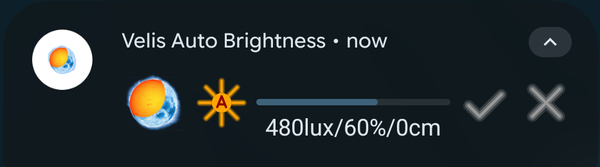
Interactive notification (Settings → Service activation) shows a persistent notification with the current brightness and quick controls while the service runs. The sun icon switches automatic brightness on or off, and the pin next to it, shown while automatic brightness is on, pins the brightness (see below); the bar shows the current brightness, including Additional brightness when charging, Permanent additional brightness and Additional brightness when interacting, and the line below it the active profile, followed by "(changed)" while it has changes (see Profiles), and the light level, brightness and proximity reading. Tapping elsewhere on the notification opens the app.
Tapping the bar sets the screen to the brightness you tapped, on the spot, and ✓ and ✗ buttons appear next to it. The brightness curve at your current light level gets that brightness less the additional brightness active at the moment, so that with it the screen shows the brightness you tapped. Unlike editing the graph directly, that adjustment needs to be confirmed or cancelled from the notification (or from the same accept/reject bar on the main screen, if the app happens to be open) - a deliberate difference, since there's no live graph to look at from the notification. Until then only the point at your light level changes; confirming spreads the adjustment to the points around it, as far as Notification adjustment smoothing (Settings → Graph settings) says, with the same Smoothing helper points as graph editing.
The system brightness slider in the notification shade makes the same adjustment, where the system lets it: releasing it at a brightness works like tapping that brightness on the bar, with the same ✓ and ✗ buttons. Whether the slider can change brightness while this app controls it depends on the phone and the brightness update method: some phones lock the slider while an overlay-based method carries the brightness (Pixel phones then show a message that an app controls brightness). Changes of about 1 % of the slider's range or less are ignored.
Tapping the pin keeps the screen at the brightness it shows at that moment, additional brightness and glare compensation included: brightness stops following the light sensor and the brightness curve until you tap the pin again. While pinned, the pin is orange and the line below the bar starts with "Pinned". Tapping the bar or releasing the system brightness slider then changes the pinned brightness to the brightness picked, without the ✓ and ✗ buttons and without changing the brightness curve; the bar shows the pinned brightness. Pinning while Use device's boost brightness has handed brightness to the system pins full brightness and switches the system's automatic brightness off until the pin is released. Switching automatic brightness off or on - from the app, the notification, the widget, the quick settings tile or Tasker - releases the pin, and so does a restart of the service.
Notification settings (Settings → Service activation) opens Android's settings for this notification - the app's notification settings until the notification has been shown once, and the app's info page on Android 6 and 7. There the notification can be hidden or silenced; the service keeps running with it hidden, the same as with it shown. Android's own notice that an app is running in the background comes from Android, not from this app, which can neither hide nor prevent it; long-pressing it shows what the phone allows to change about it.
Efforts to keep the service alive
Android is free to stop a background service it doesn't consider essential, and this app only works while that service is actually running - so several independent things exist purely to keep it running, or bring it back quickly once it isn't:
- The notification itself is what tells Android this is a foreground service worth keeping alive. Switching Interactive notification off removes it, unless Service keep-alive interval is 0, in which case the notification stays. With Interactive notification off, Android 8 to 11 can briefly show a silent notification when the app starts its service: Android requires one from a service started as a foreground service, and the service removes it at once. Its channel is "Service start" in the app's notification settings. To keep the foreground service without seeing its notification, leave Interactive notification on and hide the notification in Notification settings (Settings → Service activation).
- The Accessibility permission, where granted, holds the process alive more reliably than a foreground service alone - the same permission requested for foreground-app detection (see Excluded apps, below) also serves this purpose.
- Service keep-alive interval (Settings → Sensors) schedules a periodic restart through Android's own AlarmManager, layered on as a fallback alongside the notification and Accessibility service. Switching Interactive notification off for the first time sets it to 500 ms if it was off, and explains why.
- Start when screen turns on (Settings → Service activation) re-enables automatic brightness the moment the screen comes on, if it had been switched off.
- The app also restarts its service on its own when the device finishes booting, when the app itself is updated, when the device is unlocked, and when power is connected or disconnected - on the chance it isn't already running at that point.
None of these guarantee the service survives everything Android might do to it, but together they make it come back quickly whenever it doesn't.
While the main screen is open, a bar at its bottom points out each missing permission the current settings depend on, with a button leading to where it is granted: Accessibility; notifications; modifying system settings, while automatic brightness is on; displaying over other apps, while the brightness update method draws a plain overlay window; the camera, while a camera reads light or watches for glare; and usage access, while any app is excluded. It also points out when the calibration screen's Brightness update methods step has not confirmed any method yet, once for the unlocked screen and once for the lock screen, as long as one is left untested; its button opens that step. While Superdim threshold is set, it points out when Superdim can't dim because no window type it could use is both permitted and, on Android 11 and newer, tested, and when the lock screen isn't dimmed because the accessibility overlay's lock-screen test hasn't run; its button opens that step's Superdim section. Each reminder shows for 3 seconds, one after another, and the round starts again every 12 seconds - straight away once the reminders take longer than that. Outside the setup wizard the app does not open a permission request or its explanation on its own; what waits for a permission starts as soon as it is granted. The one exception is the notification permission, asked for once right after the setup wizard. For notifications and the camera, the bar's button brings up Android's request, or the app's settings page once Android no longer shows the request (after it has been denied twice).
Theme
Theme (drawer menu) picks the base and accent colors and whether the app uses its light or dark theme: Same as the system follows the system's dark theme setting, Light theme and Dark theme keep one regardless. Same as the system is the default.
Debug screen
Debug screen (drawer menu) shows every stage of the brightness pipeline at once: the raw reading from each enabled sensor, the smoothed/interpolated lux value, the brightness the curve produces from it, the effect of the charging bonus and glare blending, and the final value actually applied to the screen. It also has its own capture-interval controls for testing sensor behaviour without waiting for the normal interval. Mainly useful for understanding why the screen is at a given brightness, or for reporting a bug with concrete numbers attached.
App translation
App translation (drawer menu) translates the app's texts into another language, or improves the translation the app already has. Your translation stays on the phone until you send it to the developer, who adds it to the app.
Translate from picks the language whose texts are shown as the original: English, or any language the app ships a translation for. A text missing in that language is shown in English. Translate to picks the language you translate into. Its list starts with the languages the app has a translation for and the ones you have started translating, followed by every other language. Languages are listed by their name in the app's language, their own name and their code; the search field above the list filters by any of them, and the back button closes the list.
The line below shows how many texts have a translation - yours or the one in the app - and how many of them are yours. The search field narrows the list to texts whose name, original or translation contains what you type. Untranslated (the default) lists texts without any translation, All every text, Edited the texts you have translated. Each entry shows the text's name, a note for translators where the original has one, the original, the translation and where it comes from: Your translation, In the app, or Not translated. A list of texts (string array) is translated item by item; its items are named like name[0].
Tap an entry to edit it. Save keeps your text, Clear removes it so the app's translation (or English) shows again, Cancel keeps what was there. Saving an empty text is the same as Clear, and saving the app's own translation unchanged keeps no text of yours. Your texts are saved as you go, separately for each language.
Some texts have placeholders that the app fills in, such as %1$s or %d; the note above the text explains them with an example. The translation of such a text must keep them:
- numbered placeholders (
%1$s,%2$d...) must all be there with the same letter, in any order - unnumbered ones (
%s,%d,%.1f...) must be there in the same order - a percent sign on its own is written
%% - a placeholder must have a form the app can fill in:
%-sor%.2d, for example, can't be
A text without placeholders is shown as it is: its translation has no placeholders either, and a percent sign stays a plain % (as in the unit text %).
A translation that breaks these rules can't be saved, and the dialog says why. When the number of line breaks differs from the original, the dialog points it out, but the text can be saved. A translation of yours that no longer fits the original - after an app update changed the original's placeholders, or after an import - is marked Invalid - fix or clear: the app shows its own translation (or English) instead, and exports leave it out until you fix or clear it. Such texts are listed under Untranslated and Edited.
Preview
Show my translation in the app switches the app to the language you translate into and shows your texts in place of the app's own, so you can check how they fit. Switching it off returns the app to the language it had before. The preview lasts across restarts and applies only while the app's language is the one you translate into; choosing another language in Settings pauses it. The preview covers the app's screens and dialogs, and the notification while the background service runs in that language (the service takes up a language change when it starts again). It doesn't cover the widget, the quick settings tiles, Android's own labels for the app and its screens, nor menus opened from a long press; those show the app's own translation. A language the app has no translation for shows up in Settings' language list while it is the app's language.
Export and import
Export asks for a format, creates a file with all translated texts of the language you translate into - yours where you have one, otherwise the app's - and opens Android's share sheet to send it, for example by e-mail to the developer:
- Android strings.xml (
strings-<code>.xml) is the app's own resource format. The developer copies it tores/values-<code>/strings.xmlin the app's source. A list of texts is included only when all its items are translated. - XLIFF 1.2 (
strings-<code>.xlf) and XLIFF 2.2 (strings-<code>.xliff) are the exchange formats of translation (CAT) tools such as OmegaT, Poedit, memoQ and Trados. They have every text, with the English original, the translation (or none, marked as still to translate) and the note for translators. - Gettext PO (
strings-<code>.po) is the format of Poedit and of web translation platforms such as Weblate or Pootle. Each text is an entry with its name as context, the English original, the translation (or an empty one) and the note for translators.
XLIFF and PO texts are plain, without Android's escaping.
Import reads a file of up to 2 MB in any of these formats - Android strings.xml, XLIFF 1.x, XLIFF 2.x (2.0 to 2.2) or Gettext PO - into the language you translate into, for example one you exported earlier or one from a translation tool. The format is recognized from the file's content. Texts that differ from the current ones become your translation. Left out are:
- texts marked as still to translate (XLIFF 1.x
needs-translation, XLIFF 2.xinitialor a segment without translation, PO entries marked fuzzy or with an empty translation) - translations equal to the English original
- PO plural and obsolete entries
A file of another format, an XLIFF version other than 1.x or 2.x, a file that isn't well-formed XML and an XML file with a DOCTYPE declaration are not imported; a message says why. An XLIFF or PO file for another language is imported only after you confirm it.
After an import, a summary shows how many texts were imported or unchanged. Problems with individual texts turn it into Import finished with problems and are listed by kind: texts whose placeholders don't match the original (with what is wrong), texts the app doesn't have (including PO entries without a context), and texts whose markup was removed so only their text was imported. Each kind lists its first three texts with their name and imported text, and counts the rest.
Excluded apps
Some apps (video players, games, the lock screen) may want the screen at a specific brightness regardless of the ambient light curve. Excluded apps (Settings → General) lets you pick apps that should be left at a fixed brightness (Screen-on override) instead of the automatic curve while they're in the foreground. The search field at the top of the list narrows it to apps whose name or package name contains what you type; apps already picked stay picked while hidden. This relies on the Accessibility permission to detect which app is currently active - the app requests it for exactly this purpose (and to keep the background service running reliably); see the in-app explanation when you're asked to grant it for exactly what it is and isn't used for.
Superdim
On phones where the system's own minimum brightness still isn't dim enough for a dark room, Superdim threshold (Settings → Service activation) applies extra dimming below a chosen percentage using an overlay, rather than trying to push the hardware below its supported range. With Overlay window or Accessibility overlay as the Brightness update method, Superdim dims through that same window. System brightness setting and Display manager put no window on screen, so with them Superdim draws an overlay of its own: an accessibility overlay when this app's Accessibility permission is on, otherwise a plain overlay window, which needs permission to display over other apps. Superdim never dims the screen by more than 99 % - fully dimmed, the screen would be black. Whenever you switch Superdim on or raise its threshold in Settings, a dialog asks whether to keep the new setting; if you don't tap Keep within 10 seconds - for example because the screen got too dark to read - the previous setting comes back on its own. A profile can save the threshold; applying such a profile sets it without asking.
On Android 11 and newer, how far an overlay can dim before taps and swipes stop reaching what is underneath it differs between phones, so the calibration screen's Brightness update methods step measures it, in a Superdim section at its bottom. It has three tests: unlocked for the accessibility overlay, unlocked for the plain overlay window, and on the lock screen for the accessibility overlay - the plain overlay window sits below the lock screen, so it never dims it. Superdim only dims through a window type once its unlocked test has run, and never further than the last step that worked - so it works as soon as either type is tested. When the type of the window already on screen isn't tested but the other one is, Superdim draws a window of the tested type just for dimming. The lock screen isn't dimmed until its own test has run. Superdim threshold is enabled in Settings once Superdim can dim through the window it would use, and says what it needs until then; a threshold set before then stays saved, and the main screen's bar reminds you to run the test. Test both window types: if the Accessibility permission gets turned off - Android does that after some app updates - Superdim moves to the plain overlay window and keeps working only if that one has been tested too.
Each test dims in 10 % steps up to 99 %, with a small box on top. Android 12 and newer limit how far a plain overlay window can dim (80 % on most phones). Depending on the phone, stronger steps then either look no darker or stop letting taps through - either way, end the test there with Stopped working. The unlocked test takes you to the home screen: after each step, tap and swipe outside the box - open an app, pull down the notifications. The lock-screen test locks the phone: after each step, swipe up on the lock screen outside the box. Then tap in the box whether that still worked - Works, dim more goes on to the next step. Stopped working, or no tap for 10 seconds, ends the test the same way: the dimming switches off, the last step you confirmed becomes the limit, and after the unlocked test the app comes back on its own. Unlocking the phone during the lock-screen test also ends it, but counts the current step as working.
Tasker / Locale plugin and the widget
Velis Auto Brightness exposes a Locale-compatible plugin that Tasker (and similar automation apps) can use to change settings (automatic brightness on/off, sensor on/off, sensitivity, smoothing, active profile) or check conditions as part of your own automations. Setting the active profile (Select profile) is free, so the plugin can be tried without buying anything. The other settings and all conditions are part of the Tasker/widget add-on (In-app store, drawer menu), which also unlocks the home-screen widget's Profile button, statistics and transparent background.
The store's other two items unlock nothing beyond this add-on. Developer support is a donation and adds no features, so buy the add-on first if you want them. Project supporter is redeemed with a coupon given to project contributors and unlocks everything the add-on does, as well as future premium features.
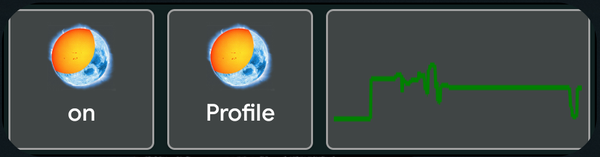
The widget's first button switches automatic brightness on or off, Profile picks a saved profile and shows the active one's name, with " *" after it while it has changes (see Profiles), and the graph shows the brightness over the recent past, newest on the right; tapping it opens brightness statistics - how much of that time was spent in each brightness range. Launcher widget parameters (Settings) set how long a period the graph covers, how many samples it holds, how wide the statistics ranges are, and whether the widget has a transparent background. Without the add-on, Profile and a tap on the graph open the In-app store, as does editing one of the plugin's actions or conditions in Tasker.
Quick settings tiles
On Android 7 and newer, two tiles can be added to the quick settings panel (the panel's edit button). A long press on either opens this app.
- Velis Auto Brightness switches automatic brightness on or off, the same as the widget's first button. It shows as on while automatic brightness is on, whichever way it was switched. With automatic brightness off, the system brightness slider in the same panel sets the brightness.
- VAB profile picks a saved profile, the same as the widget's Profile button, and like it is part of the Tasker/widget add-on: without the add-on, tapping it opens the In-app store. It shows the active profile - below its name from Android 10 on, in place of it before that - followed by "(changed)" while it has changes (see Profiles), and nothing without an active profile.
Privacy
The app does not collect or transmit any personal data. Camera and light-sensor readings are used locally to compute brightness and never leave the device. The Accessibility permission, where granted, is used only to detect the foreground app for the excluded-apps feature and to keep the background service alive - not to read screen content.
More help
For anything not covered here, the Changelog (drawer menu) lists everything that's changed release by release.